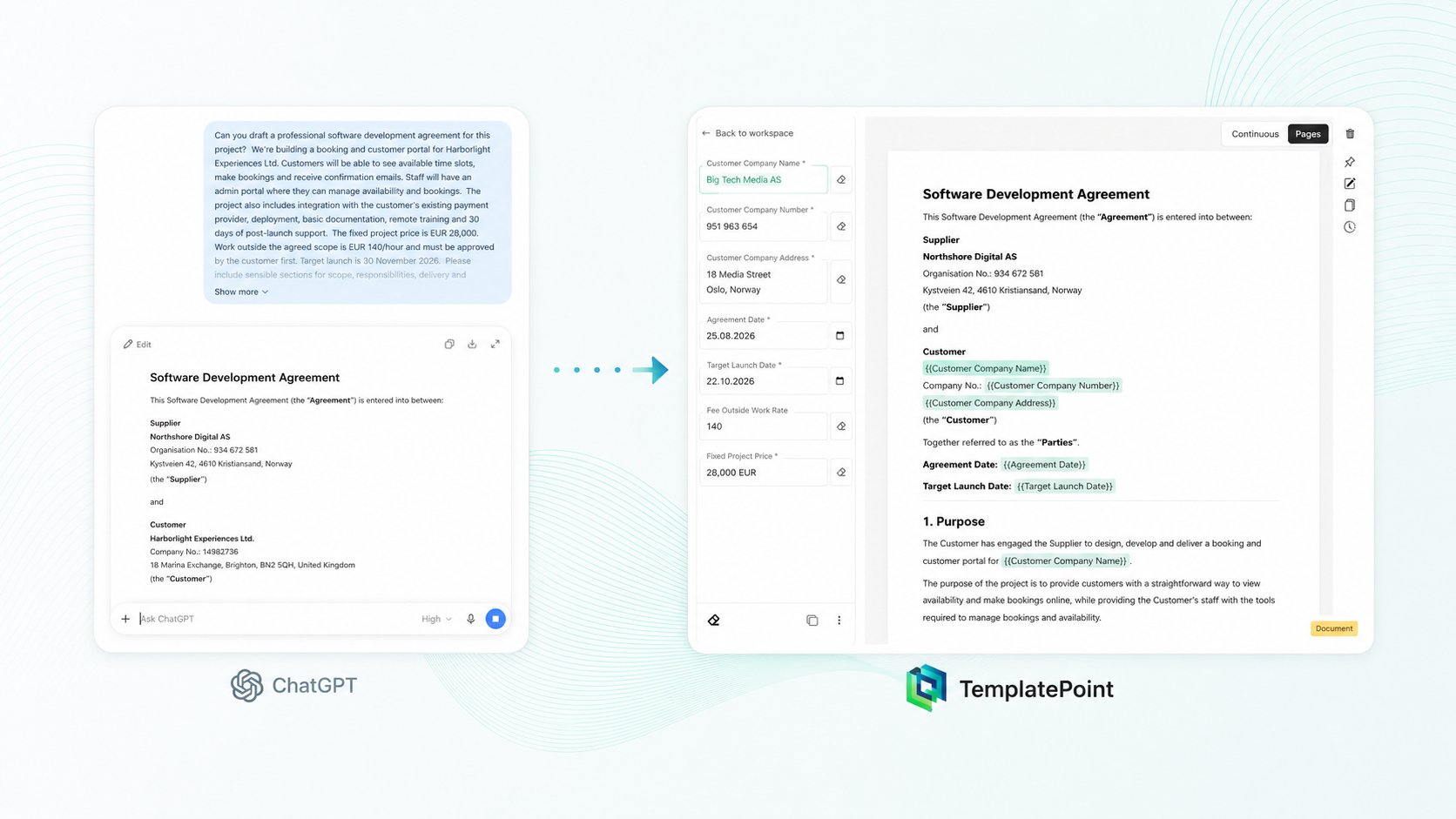
A lot of business documents now start with a prompt.
Describe what you need. Add a few details. Let ChatGPT produce a surprisingly complete first draft.
Then copy the result into Word, make some edits and send it.
For a one-off document, that can work perfectly well.
The awkward part arrives when the document is good enough that you want to use it again.
Now someone has to remember which names, dates, prices and project details need to change. There may be several copies in circulation. Nobody is quite sure which version is approved. And the document that began as a useful AI draft gradually becomes:
Agreement_FINAL_v3_updated_really-final.docx
TemplatePoint lets you keep the speed of AI while turning the result into a reusable document workflow.
The process becomes:
Prompt → review → create fields → apply → fill → export
Here is how it works.
1. Start with the AI draft
In this example, we ask ChatGPT to draft a software development agreement.
The prompt includes the project scope, price, hourly rate, delivery date and other details needed to produce a useful starting point.
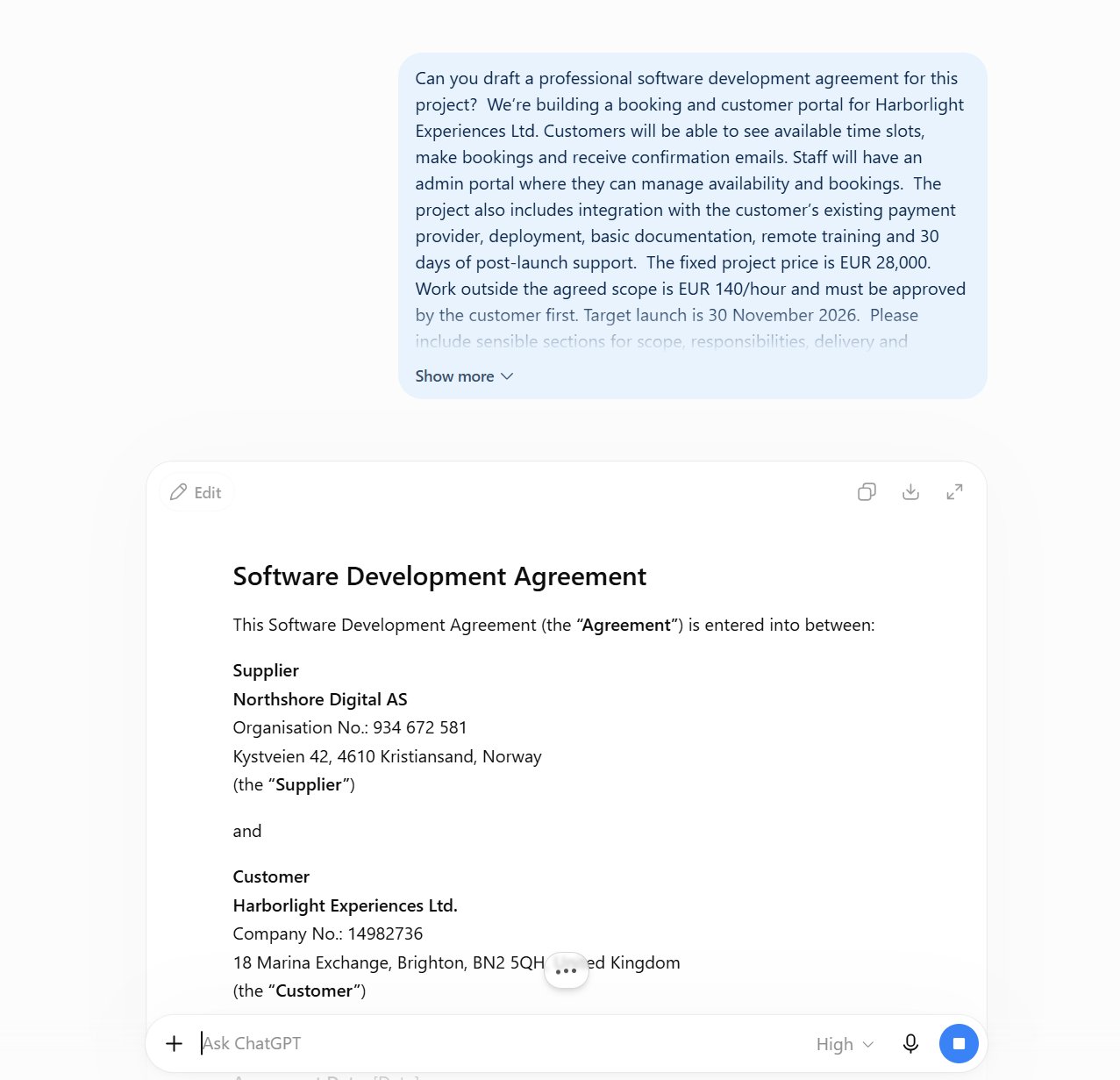
This is already considerably better than staring at a blank page.
But it is still a draft.
AI can help with structure and wording, but it does not know every detail of your business, your customer or the rules that apply to your situation. Agreements and other important documents should still be reviewed by someone qualified to assess them.
The companies and project details in this example are fictional. The point is the workflow, not the legal document itself.
2. Bring the result into TemplatePoint
Once you have a useful draft, paste it into the TemplatePoint editor.
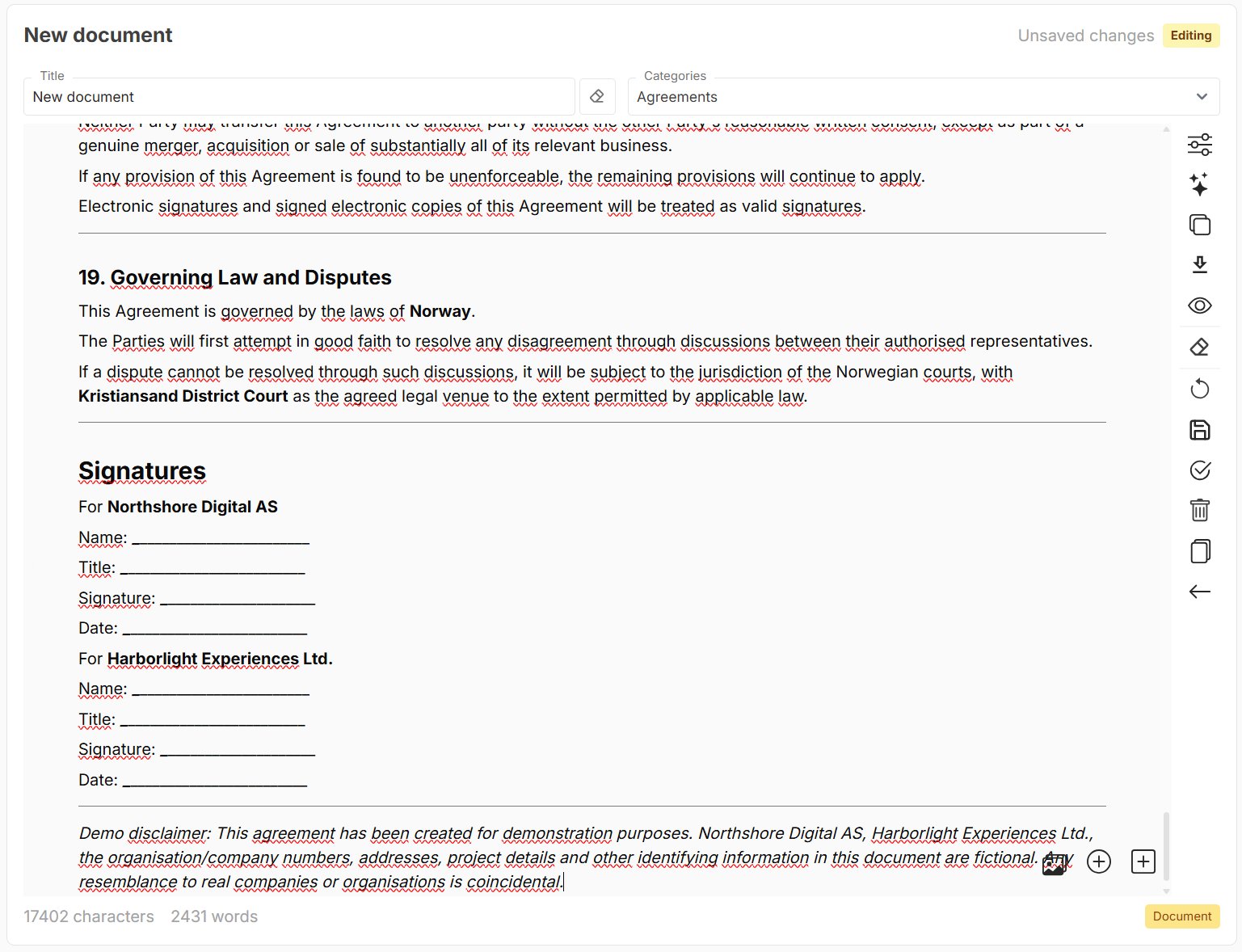
The document is now editable, so you can clean up the formatting, rewrite sections and make whatever changes are needed before turning it into a template.
This is an important part of the process.
The AI output is the starting point. The version you review and approve in TemplatePoint becomes the document your team actually works from.
3. Turn fixed customer details into fields
An AI-generated agreement often arrives with customer names, prices, dates and other real values already in place.
That makes the document immediately useful, but it creates the same reuse problem as starting with an agreement written for a previous customer.
We covered that workflow in How to turn an old agreement into a reusable template without bringing the last customer’s details with you.
The starting point is different.
The risk is the same.
Before reusing the document, turn those fixed values into fields.
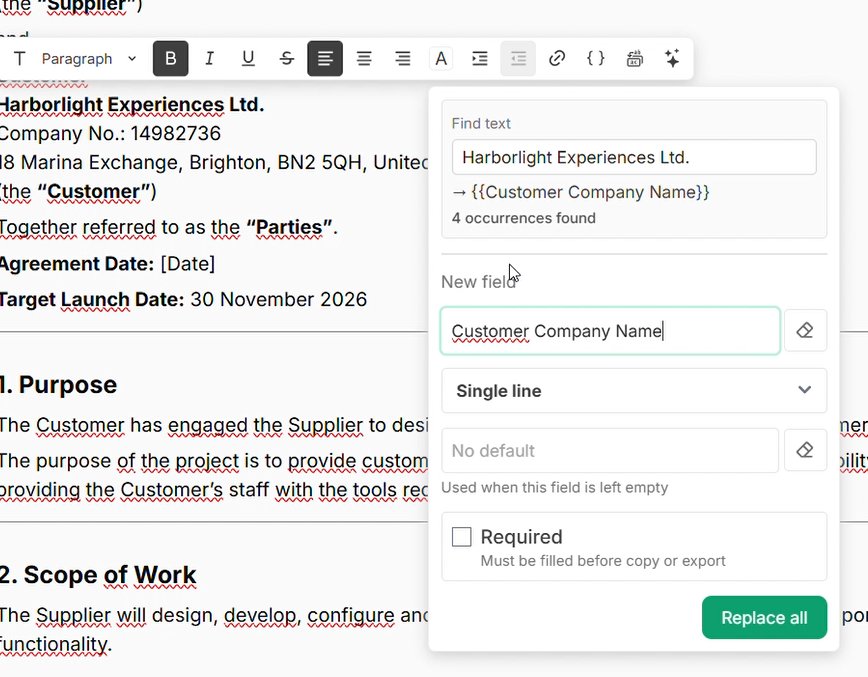
The agreement currently contains the customer name Harborlight Experiences Ltd. Select the name and choose Replace with field from the editor toolbar. Select Replace all with field to replace all occurrences of the company name with a dynamic input field.
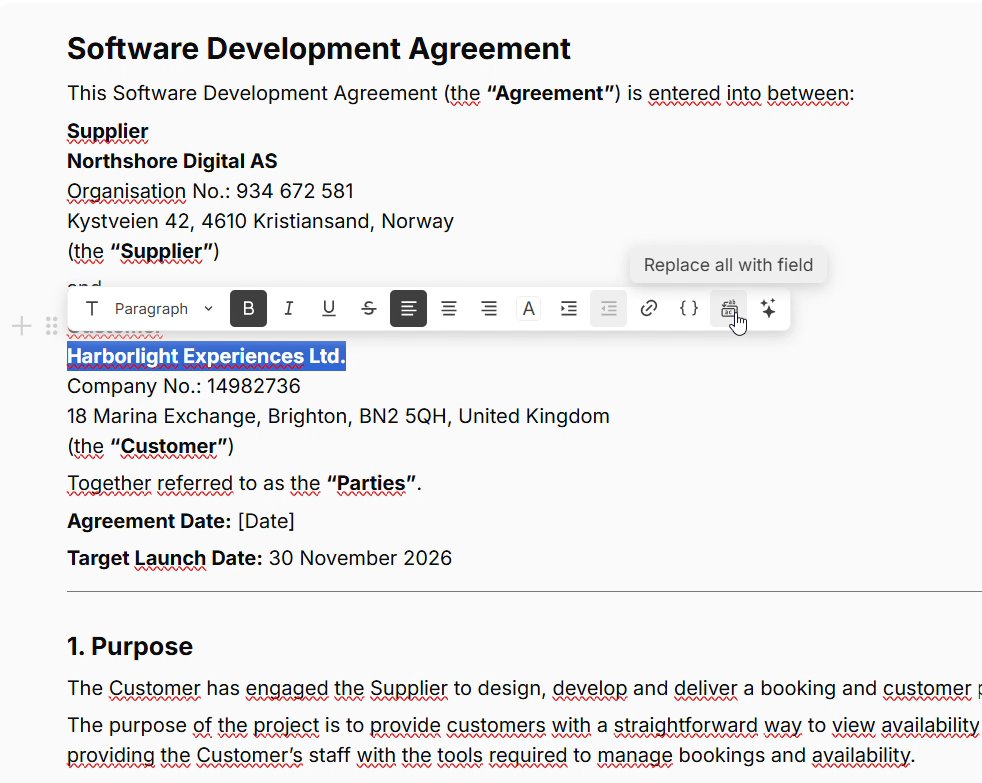
Give the field a clear name, such as Customer Company Name.
Repeat the process for anything that changes between uses:
- customer names and company numbers
- addresses
- contact people
- agreement and delivery dates
- project names
- prices and hourly rates
- payment terms
- reference numbers
When the same value appears several times, choose the same existing field for every relevant occurrence. Those occurrences will then share one input when someone fills in the document.
That is considerably better than asking every future user to search through the whole agreement themselves.
4. Add defaults for values that usually stay the same
Some values vary from customer to customer.
Others normally stay the same, but occasionally need to be changed.
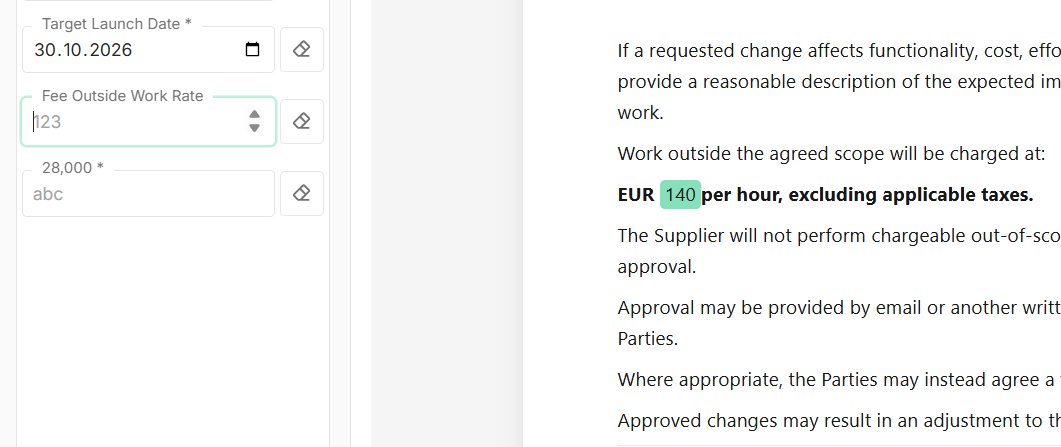
In this agreement, work outside the agreed scope is normally charged at EUR 140 per hour. We can select 140, replace it with a Number field called Fee Outside Work Rate, and give it a default value of 140.
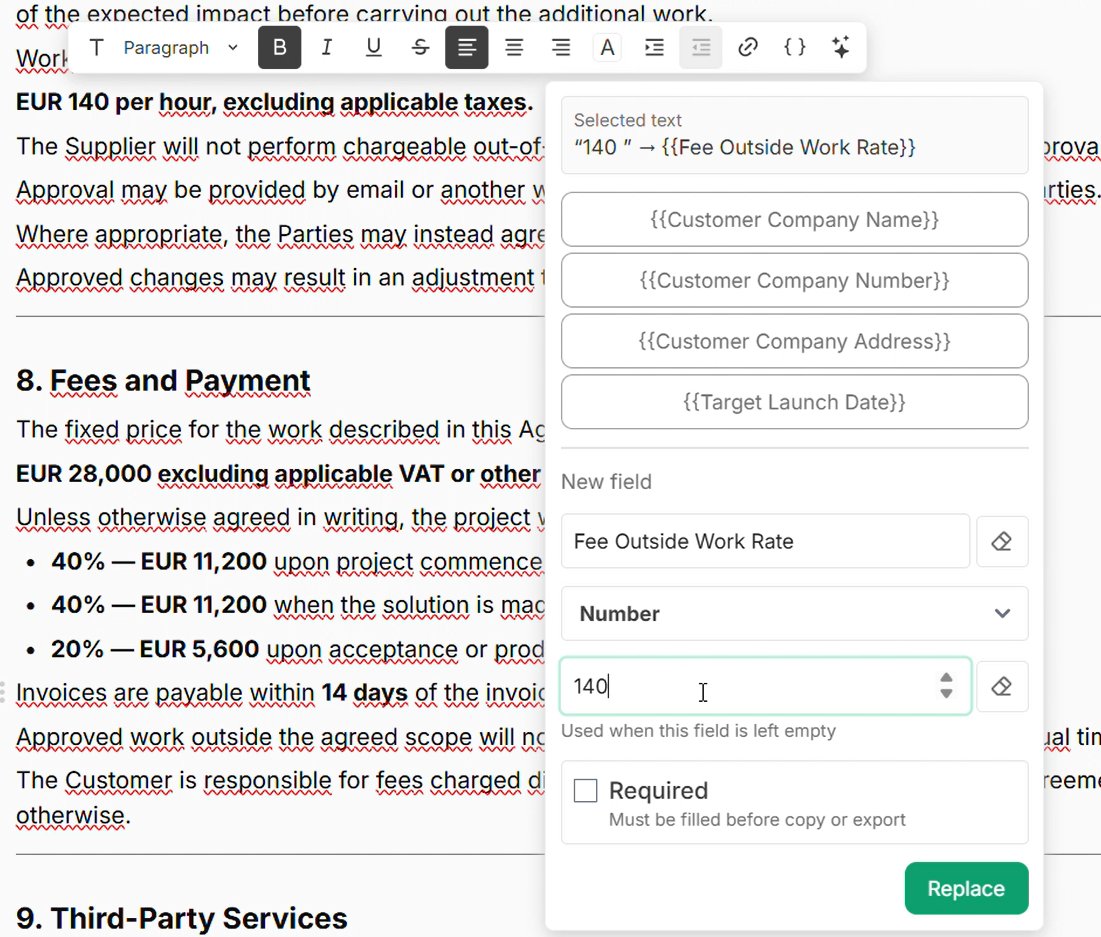
The default is used whenever the person filling in the document leaves that field empty.
We can also leave this field optional. The normal rate is already covered, while the person preparing the agreement still has the option to change it.
Defaults are useful for standard rates, payment periods, notice periods and other values that are usually predictable without being permanently fixed.
5. Save unfinished work as a personal draft
Turning a long document into a good template may take more than one sitting.
Instead of making unfinished edits live for everyone, save them as a personal draft.
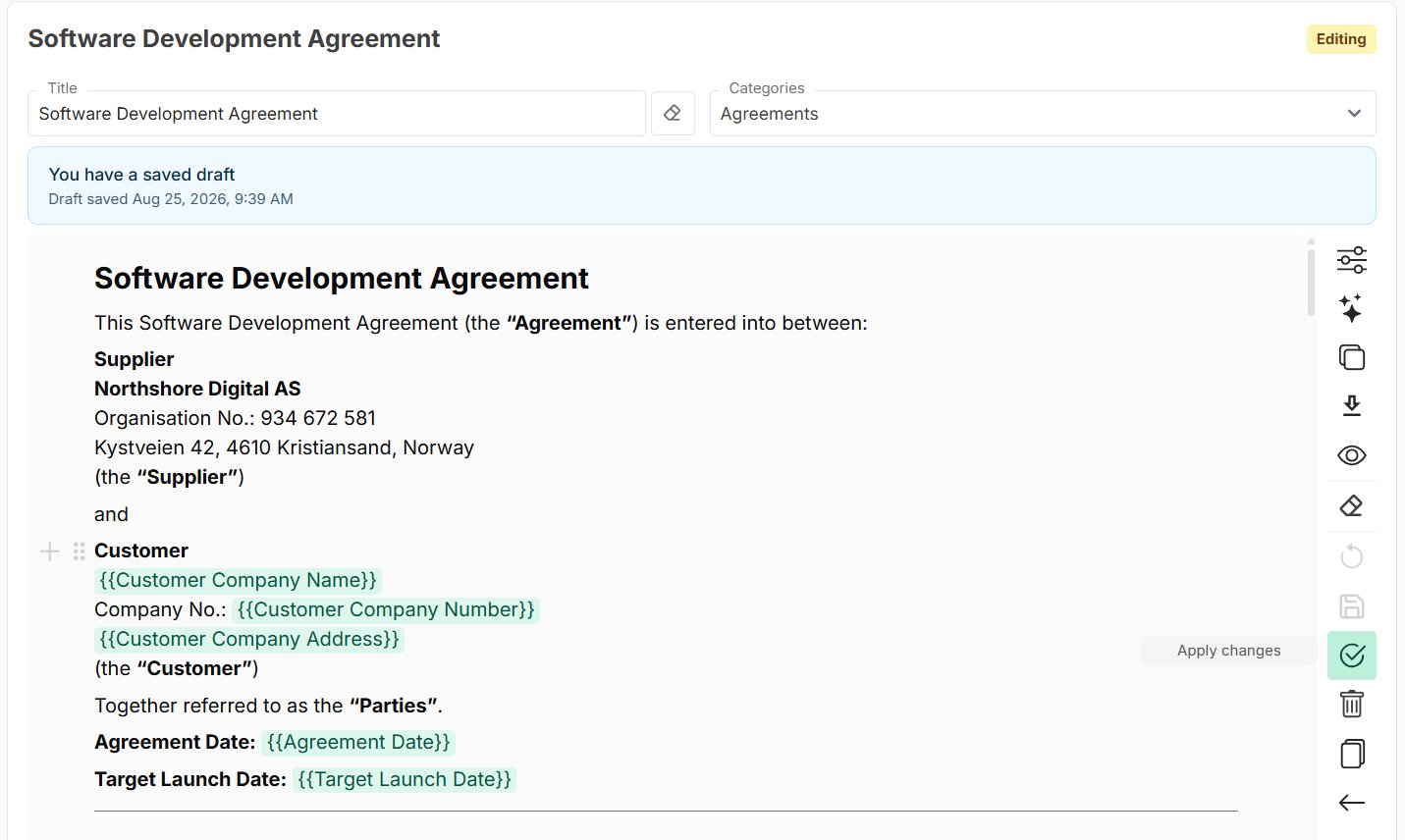
The draft is saved against your account, so you can leave the document and continue later—even from another device after signing in.
Your draft remains separate from the shared template until you choose Apply changes.
If another editor changes the shared document while you are working, TemplatePoint does not silently overwrite either version. It lets you review the newer shared version and decide what should happen to your draft.
That makes it possible to stop halfway through a large editing job without publishing half-finished fields or losing track of your work.
6. Fill once and update every linked occurrence
After the changes have been applied, the document is ready to use as a template.
The fields are collected in a panel beside the document.
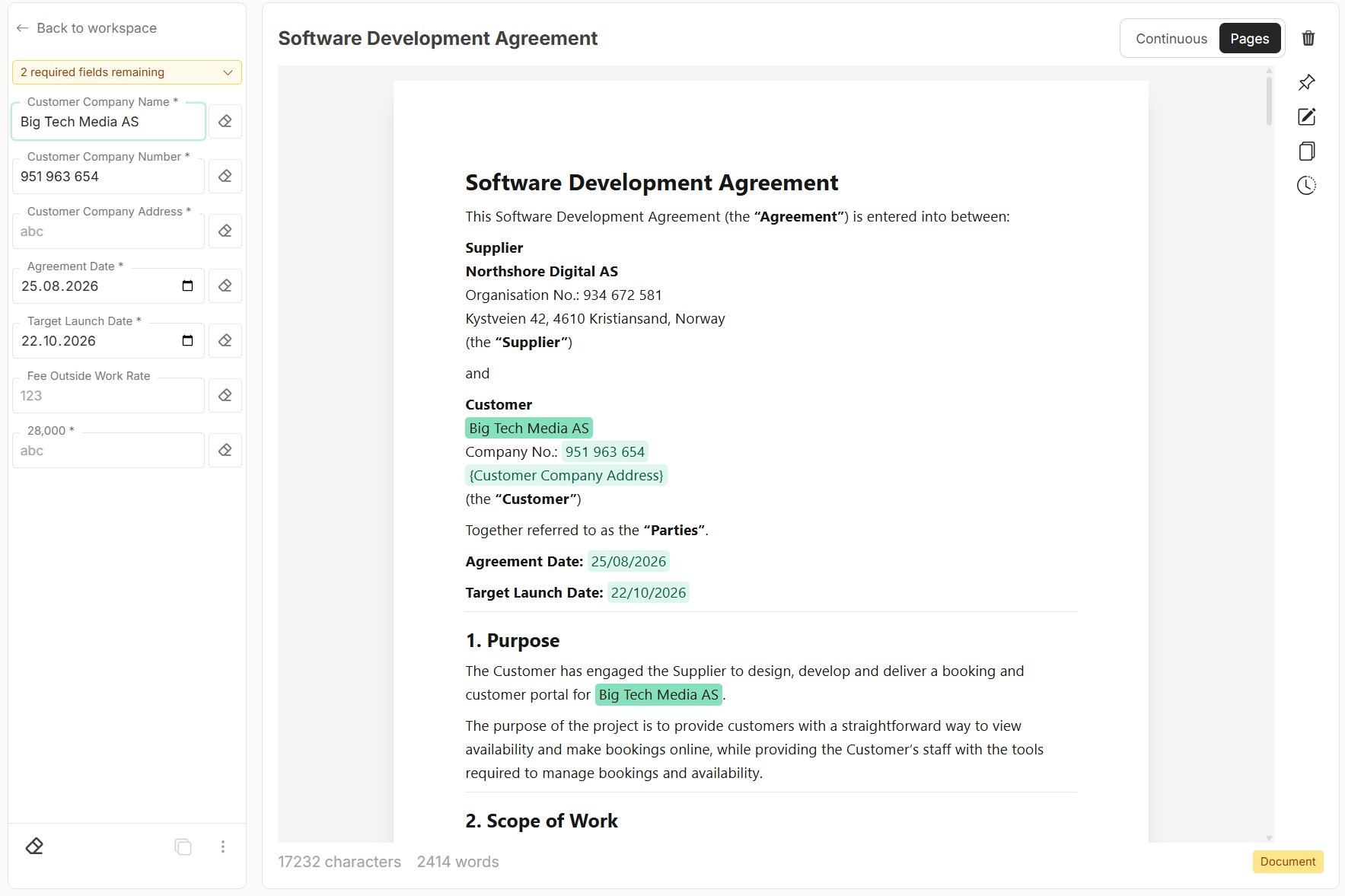
Here, Customer Company Name has been inserted in more than one place in the agreement.
Enter Big Tech Media AS once, and every occurrence linked to that field updates with the same value. Selecting the input also highlights each place where the field is used, making it easy to see how the value flows through the document.
The same approach works for company numbers, addresses, dates, prices and any other information repeated throughout the document.
Each relevant occurrence needs to use the same field. During setup, work through the document once and select the existing field whenever the same value appears again.
Required fields also make it clear when important information is still missing. Copy and export remain unavailable until those required values have been completed.
The person using the agreement no longer needs to remember every paragraph where the customer’s details appear.
The template already knows.
7. Use the default—or override it
Here is the hourly-rate default in action.
Nothing has been entered in the Fee Outside Work Rate field, so the document uses the default value of 140.
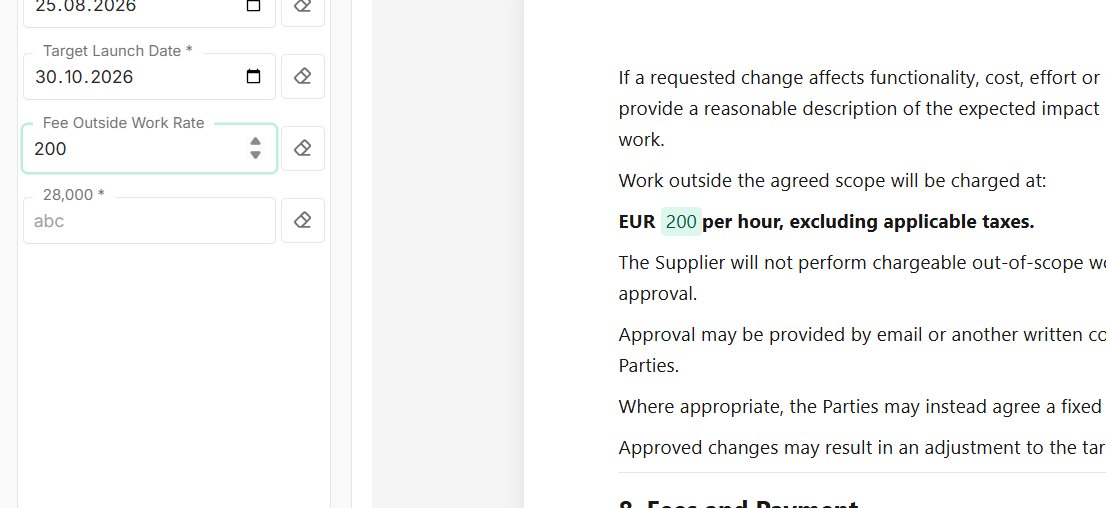
For a different project, enter 200 in the field.
The entered value immediately overrides the default.
Clear the entered value and the default appears again.
The standard case requires no extra work, while the exception is still easy to handle.
8. Copy or export the finished document
Once the required fields have been completed, the result is ready to leave TemplatePoint.
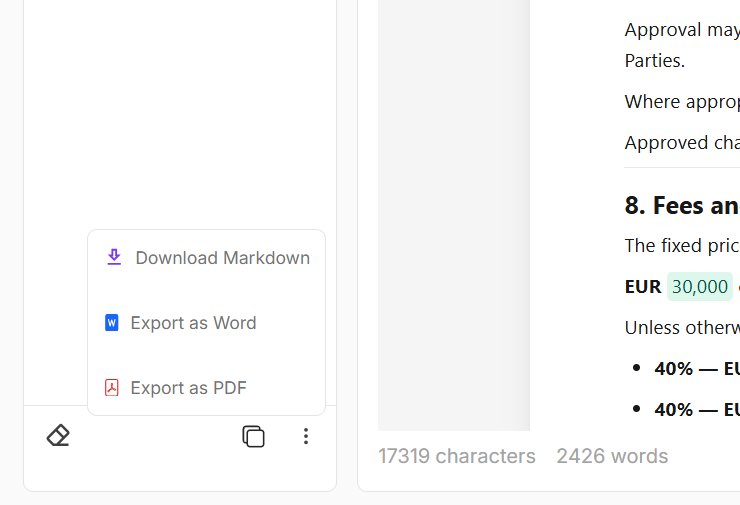
You can copy the finished document, download it as Markdown, export it as a Word document or use the PDF option through your browser’s print and save flow.
Markdown is particularly useful when the content is heading into a CMS, documentation system, code repository or another AI workflow.
The values entered through the fields are included in the finished output.
No visible placeholders. No manual search-and-replace before every export.
9. Keep control of the approved version
Turning an AI draft into a reusable template is not only about saving time.
It is also about knowing which version people are using.
TemplatePoint keeps a version whenever the document’s content changes. Open the version history to see when each version was saved and who saved it.
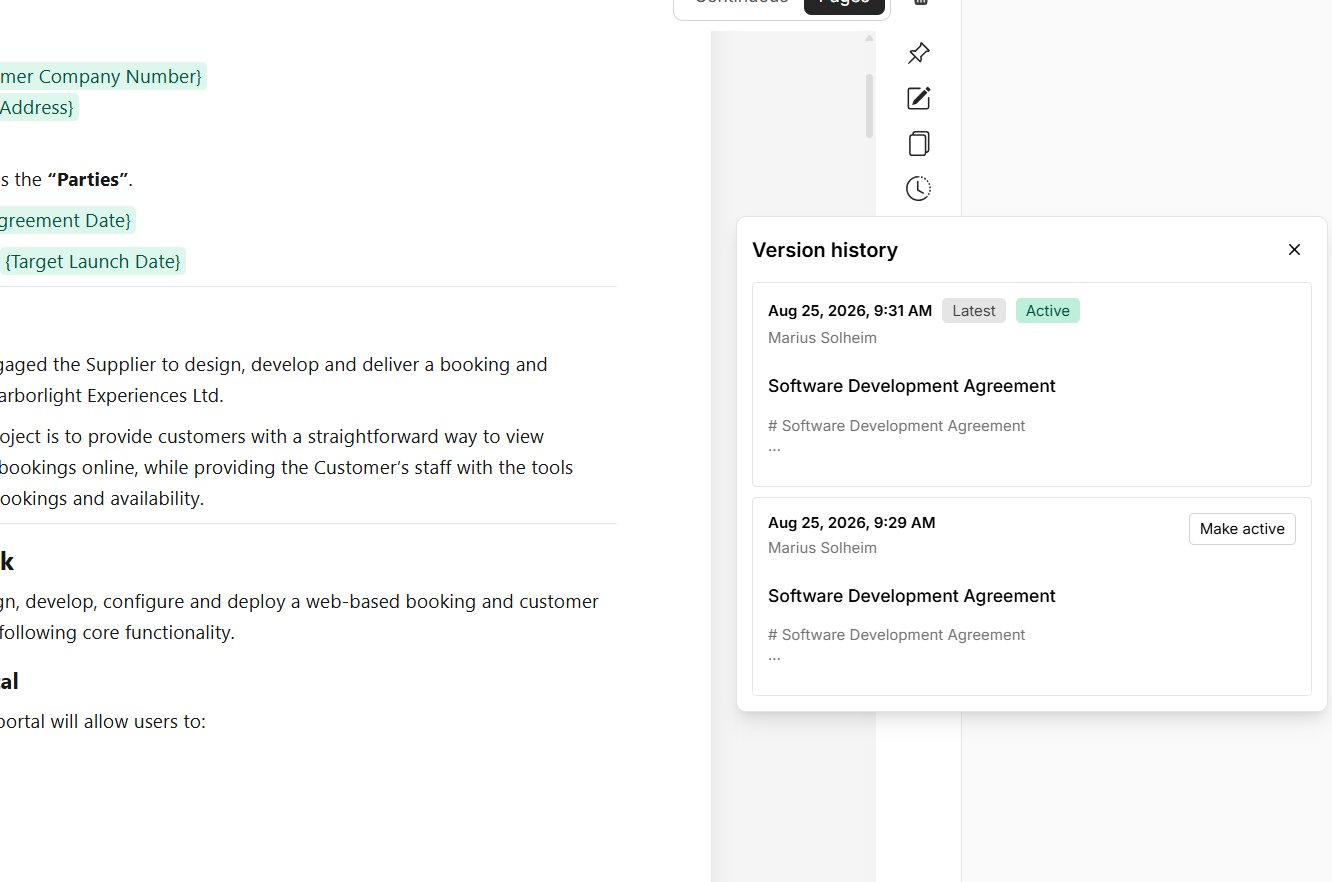
The Latest version is the newest saved version. The Active version is the one currently in use.
They will normally be the same, but they do not have to be.
If a change turns out to be wrong, choose Make active on an earlier version and confirm the change. The newer history is not deleted, so you can move forward again later if needed.
AI can help draft the wording.
Your team still decides which wording is active.
10. Decide who should be able to use the document
Not every document should be available to every member of a workspace while it is being developed.
From the template table, availability can be changed from Available to workspace to Editors only.

An editors-only template is available to workspace editors and organization owners or admins, but not to workspace viewers.
This is useful when an agreement, policy or other important document is still under review. Editors can work on it, check the fields and agree on the active version before making it available to the wider workspace.
Workspace access can be managed separately by assigning each member an Editor or Viewer role.
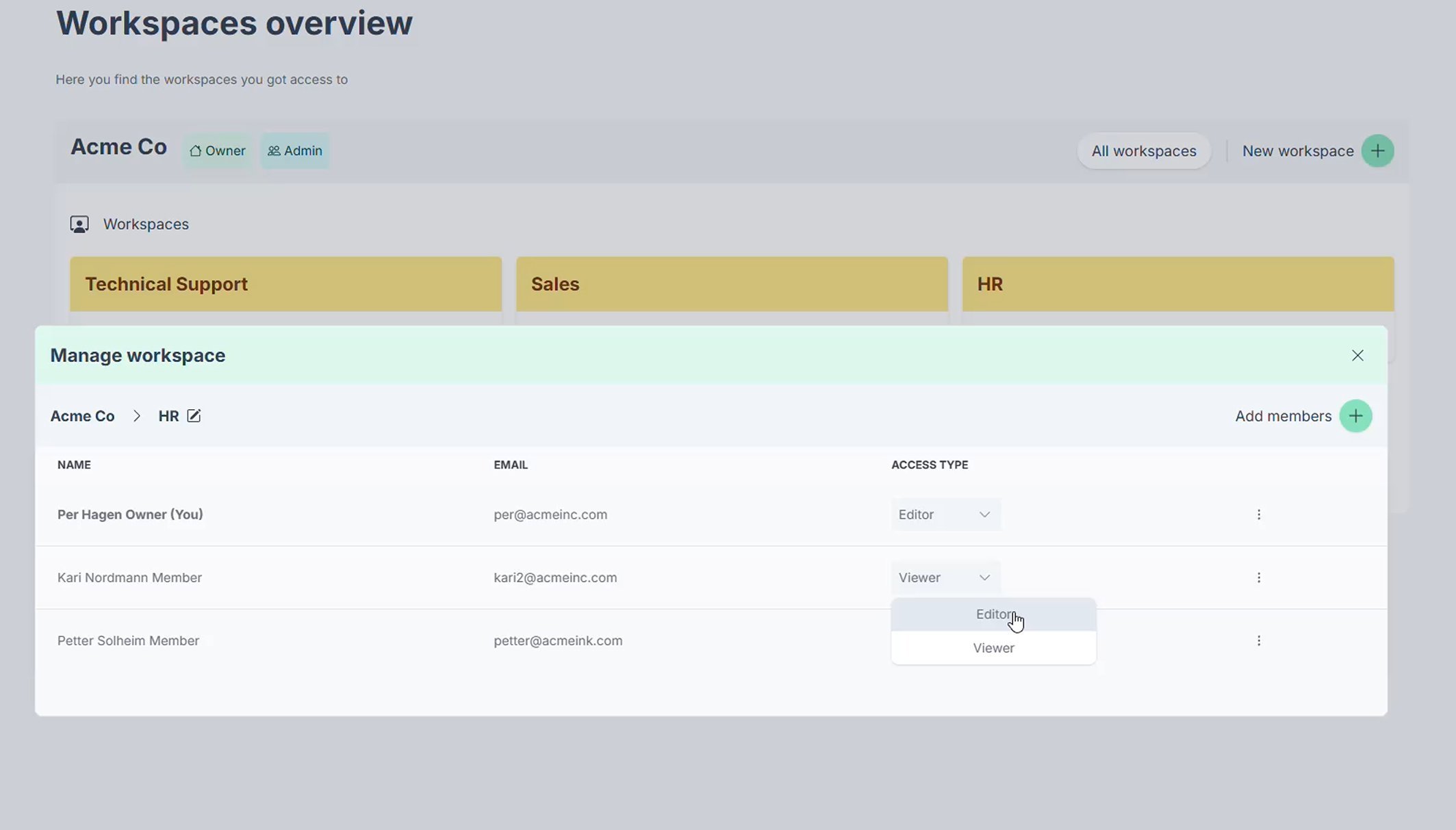
Viewers can use the approved templates made available to the workspace. Editors can create and modify its content.
That gives the AI-generated document somewhere to live beyond the original chat—and gives the organization control over who can change it.
AI can draft the document. It does not have to be the workflow.
Prompting ChatGPT and pasting the result into Word is a perfectly reasonable way to get past the blank page.
The problem is everything that happens afterward.
Which values need to change?
Which version is approved?
Who can edit it?
What happens when two people make changes?
How do you reuse it without checking every paragraph again?
TemplatePoint picks up where the AI response ends.
The full flow becomes:
Prompt → review → paste → create fields → save draft → apply → fill → export
You keep the speed of AI.
You just stop rebuilding the process every time you use what it created.