A lot of new agreements start with an old agreement.
Find the previous document. Make a copy. Change the customer name. Update the dates. Replace a few numbers. Read through it and hope you caught everything.
Usually, that works.
Until the new customer opens the document and finds the previous customer’s name halfway down page six.
If it is just an old project name, it is embarrassing. If pricing, contact details or other customer-specific information came along for the ride, it can become a much bigger problem.
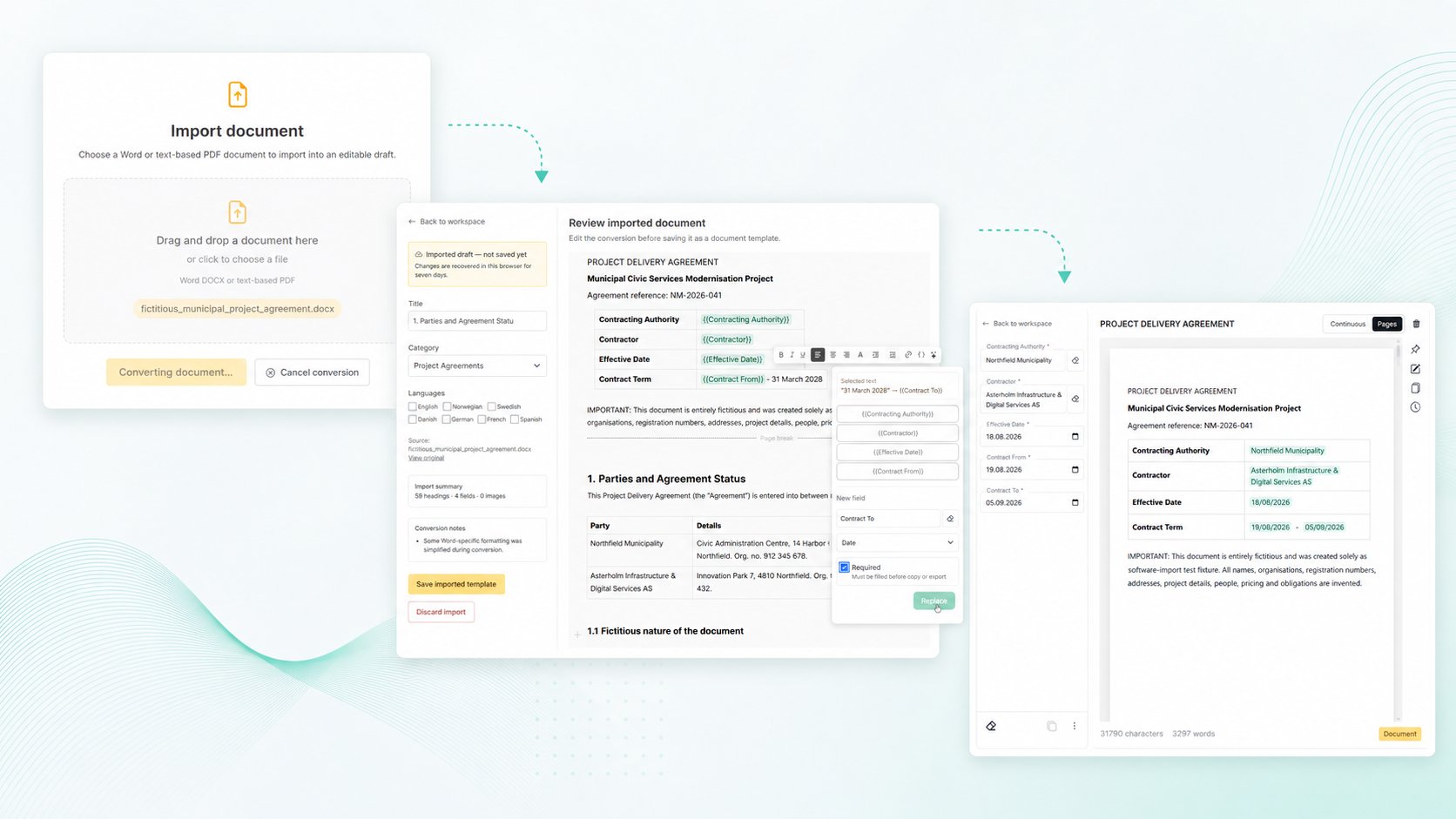
TemplatePoint lets you keep the document you already use, while turning the parts that actually change into structured fields.
So the workflow becomes less:
Copy → search → replace → double-check → hope
and more:
Choose template → fill fields → export
Here is how it works.
1. Import the document you already use
You do not need to rebuild an existing document from scratch just because you want to turn it into a template.
TemplatePoint can import Word documents in DOCX format and text-based PDFs. Drag the file into the import area, or choose it from your computer.
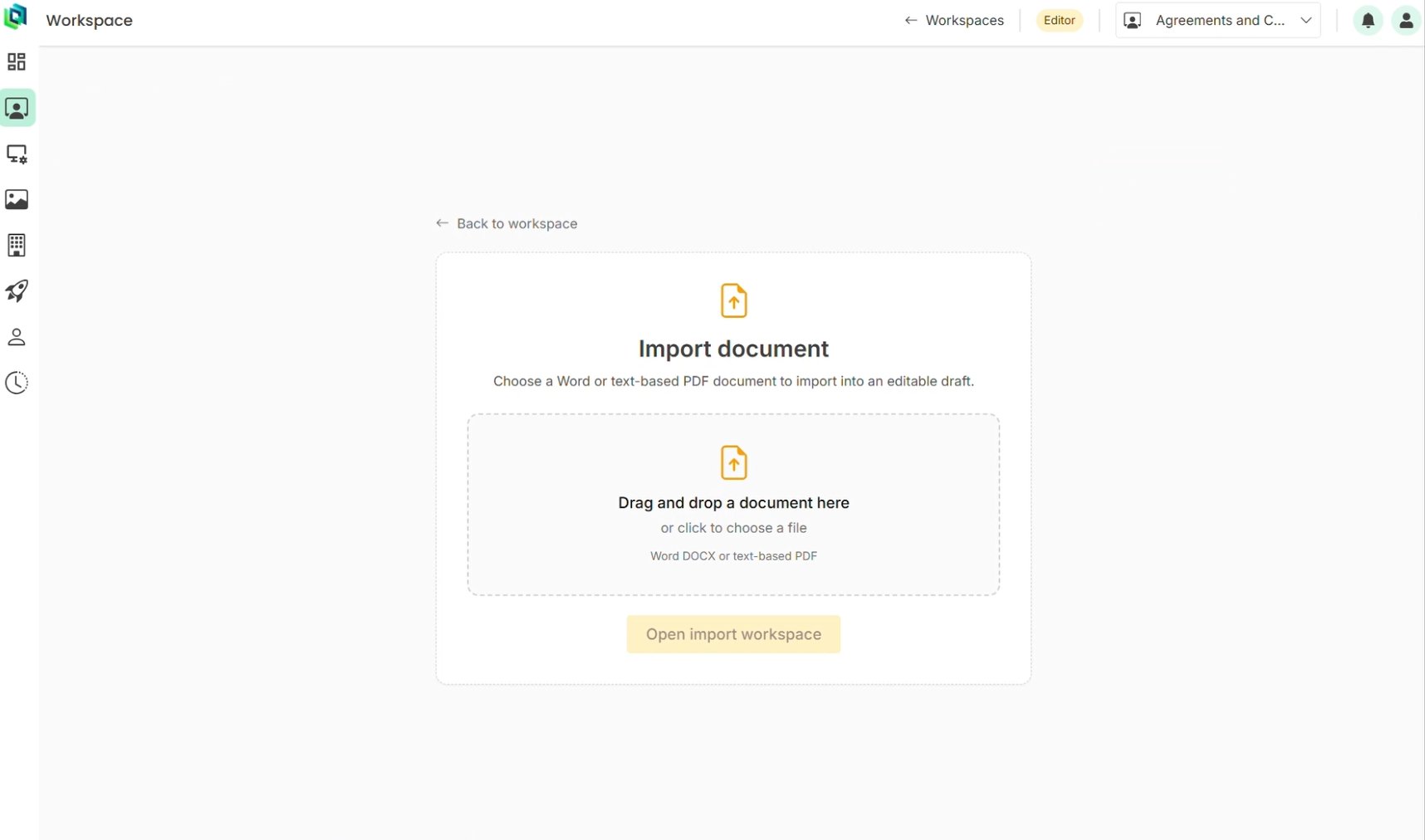
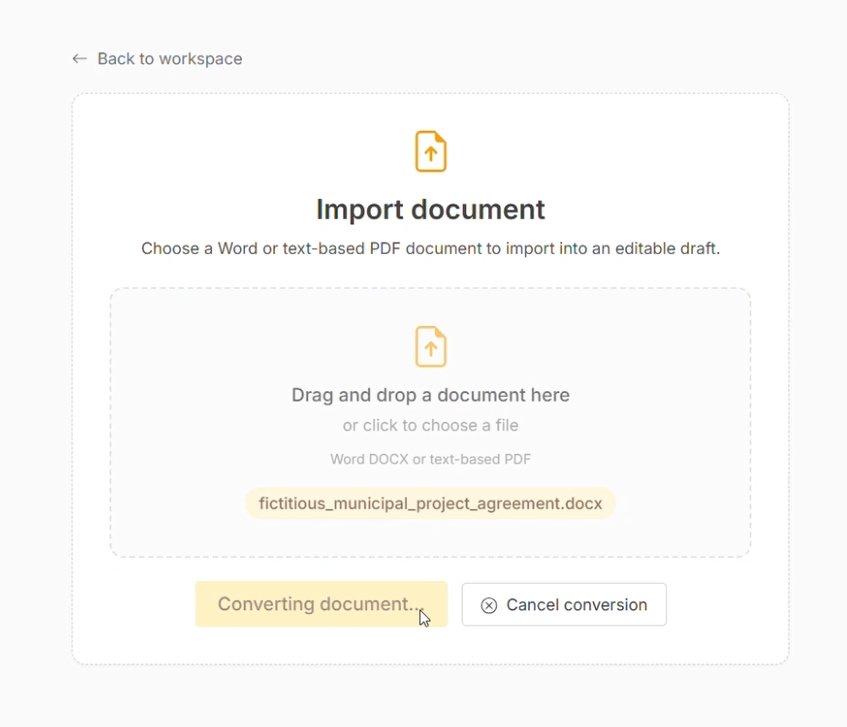
Once the file is selected, TemplatePoint starts converting it into an editable draft.
The imported document opens as a draft first, so you can review the result before saving anything as a template.
For this example, we are using a fictitious project agreement. The same workflow works for customer agreements, proposals, reports, forms and other documents that tend to be reused again and again.
2. Find the details you usually have to remember to replace
Once the document has been imported, the next step is to identify the values that change from one use to the next.
Typical examples include:
- customer names
- company details
- contact people
- dates
- project names
- prices and amounts
- reference numbers
- addresses
- other customer-specific information
These are also exactly the kinds of values that are easy to miss when an older document is used as the starting point.
Instead of deleting the existing text and manually inserting a placeholder, you can select the value that is already there.
In the example below, we select Northfield Municipality directly in the agreement.
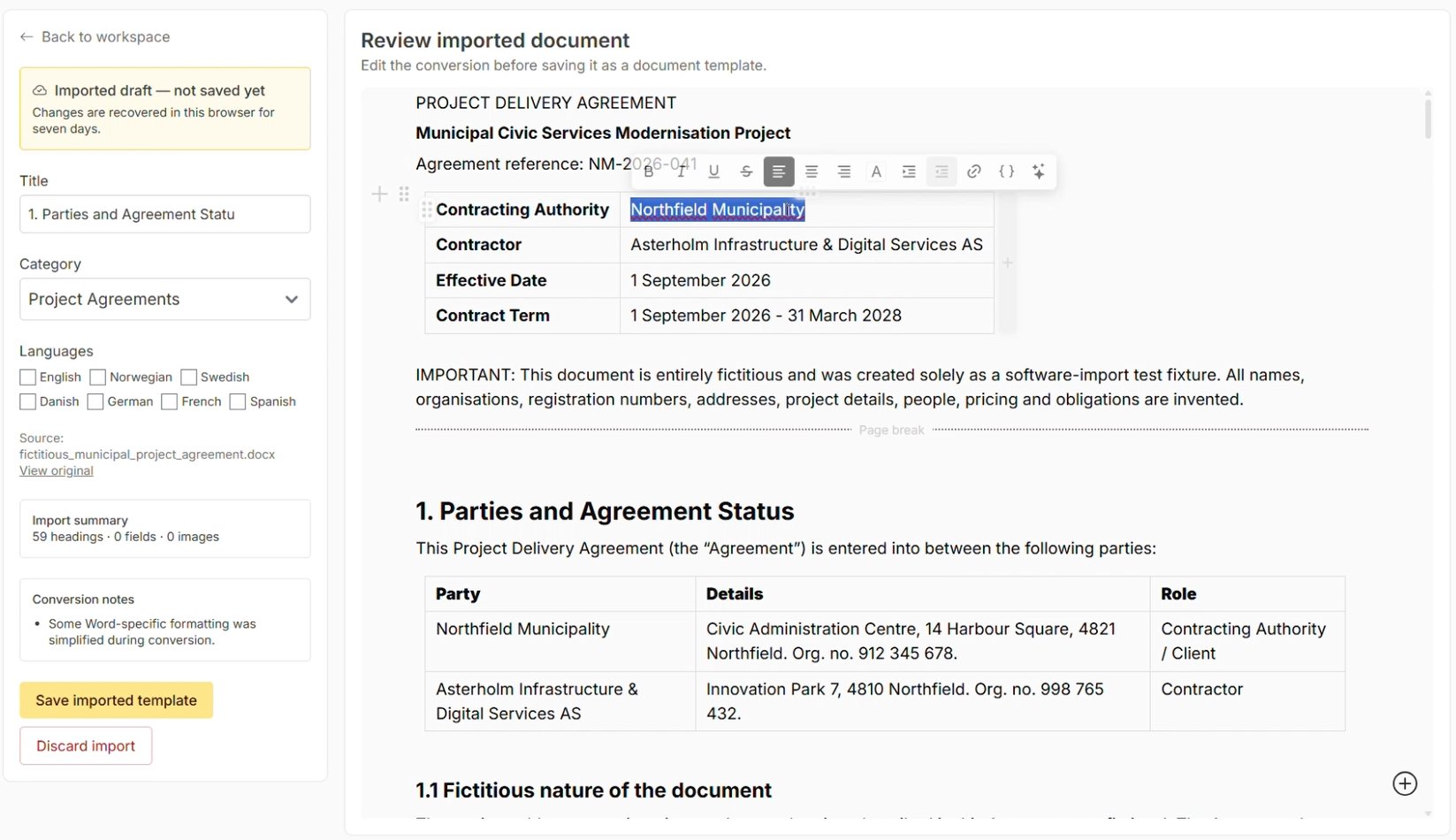
TemplatePoint uses the selected text as the starting point for the new field.
That means you can work through the document as it already exists, rather than building a separate template alongside it.
3. Turn the value into a field
Next, give the field a name and choose the type of value it should accept.
For a customer or organisation name, a normal text field is usually enough.
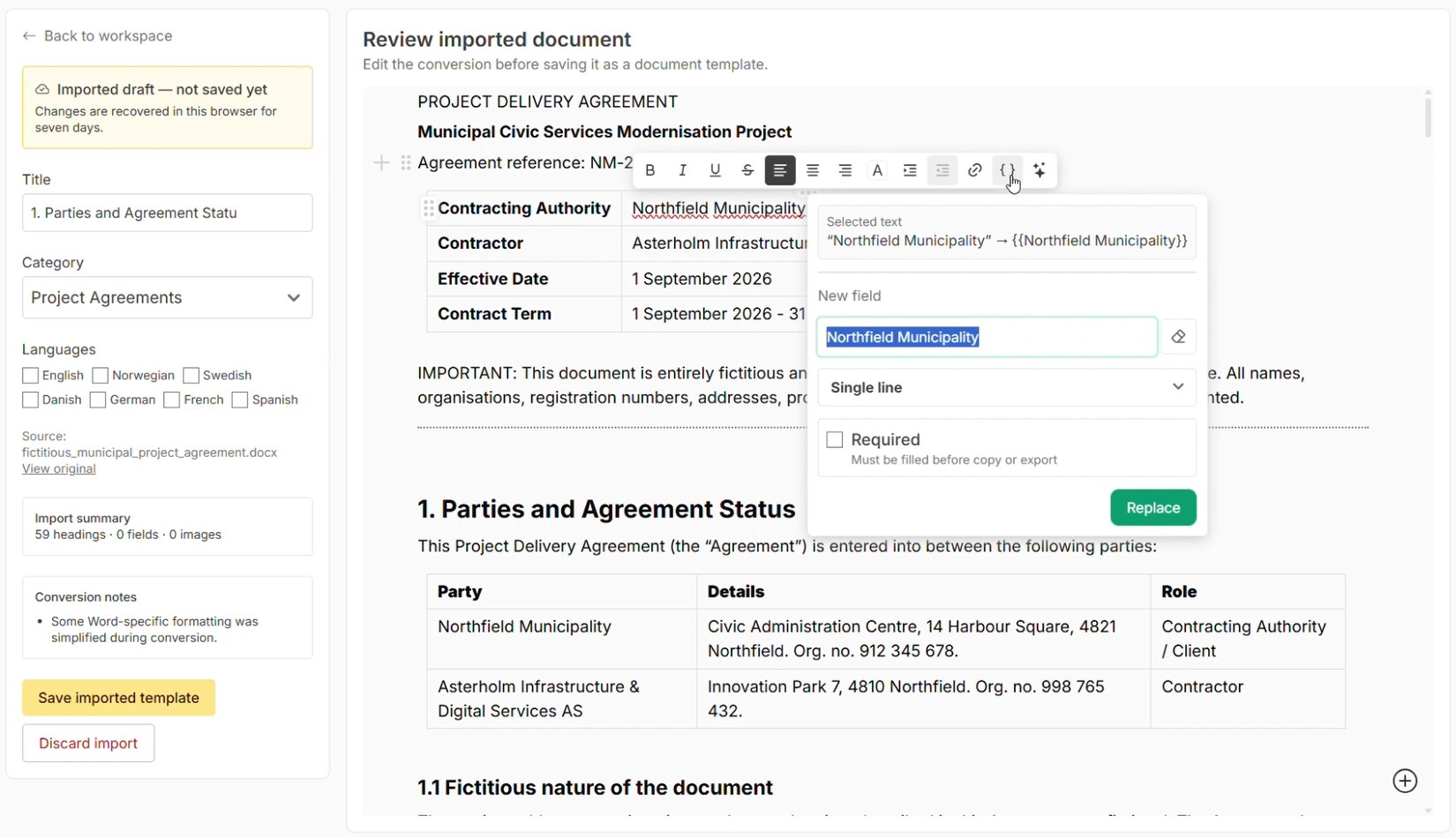
Give the field a name that makes sense to the person who will eventually fill out the template.
When you choose Replace, the old value is replaced by a TemplatePoint field in the same location.
The next person using the document no longer has to know that this particular value needs to be found and changed.
The field tells them.
4. Let dates be dates
Not every value should be treated as generic text.
A date is a date, not just a string that happens to look like 31 March 2028.
In the project agreement, we select the existing contract end date and replace it with a field called Contract To, using the Date field type.
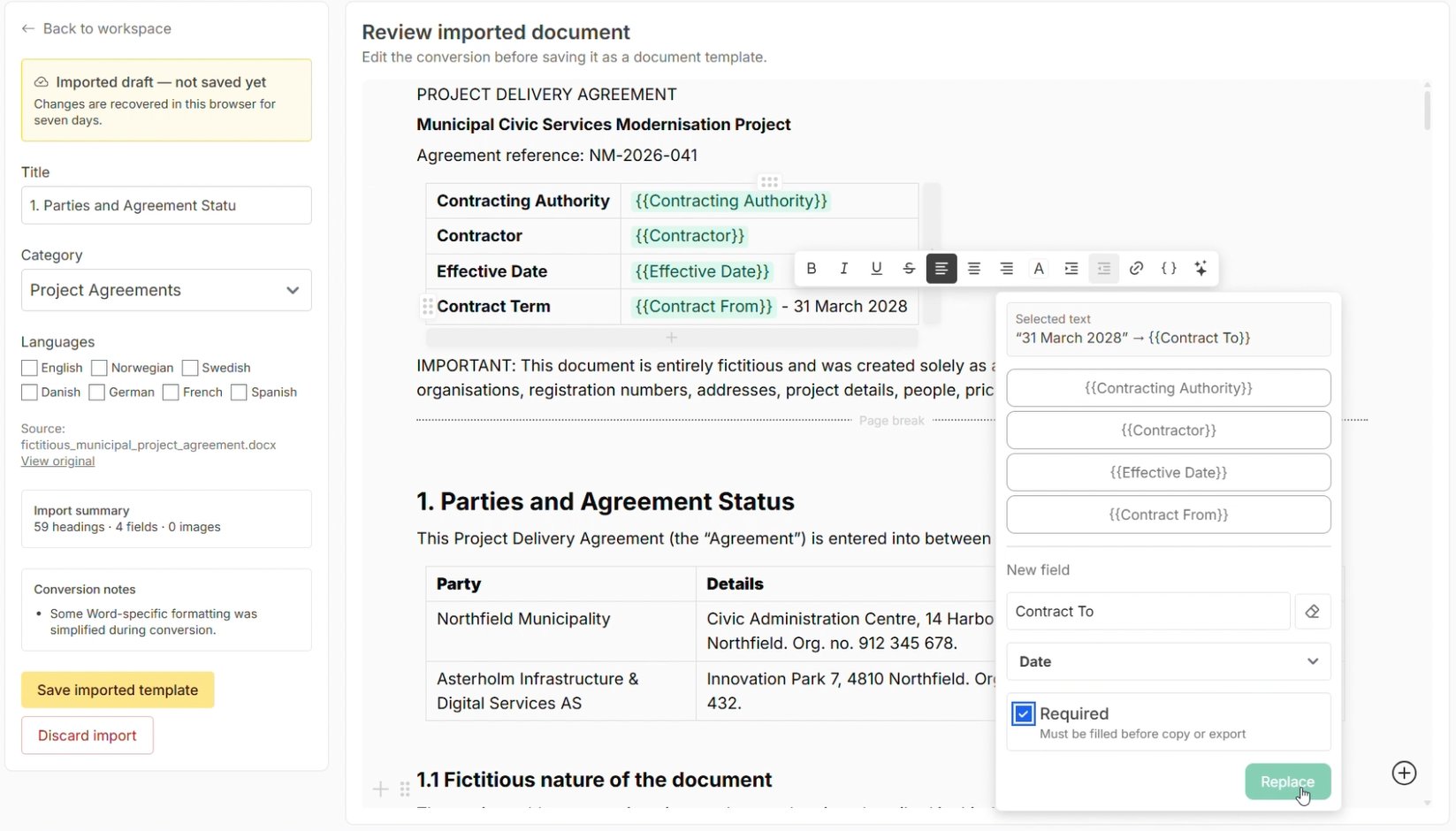
The field can also be marked as required.
That means TemplatePoint can stop the document from being copied or exported while an important value is still missing.
A little better than discovering the omission after the PDF is already sitting in the customer’s inbox.
Repeat the same process for the other values that should change from document to document.
5. Save the template — and stop editing copies
Once the document has been reviewed and its variable values have been turned into fields, save the draft as a normal TemplatePoint document template.
The next time the agreement is used, you do not need to open the document and start hunting for old values.
The fields are collected alongside it.
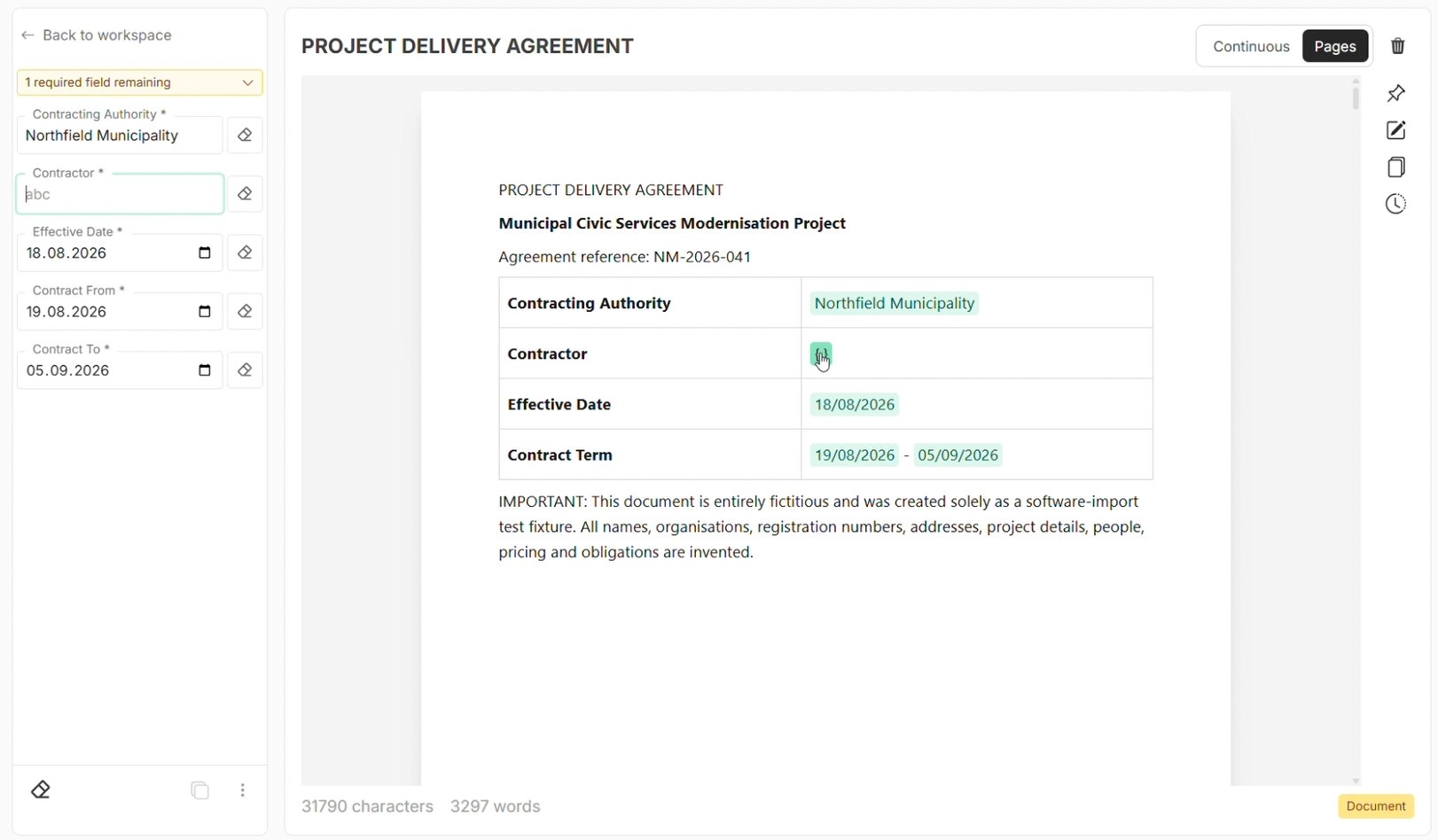
Fill in the customer name, dates and other values in the side panel, and TemplatePoint places them in the correct locations in the document.
Required fields also make it obvious when something is still missing.
The difference is important:
In a copied Word document, you have to remember which values need to change.
In a structured template, it is defined which values need to be filled in.
That makes the process less dependent on memory, routine and how thoroughly someone happens to read through the document that day.
6. Export when everything is in place
Once the fields have been completed, the document is ready to export or print.
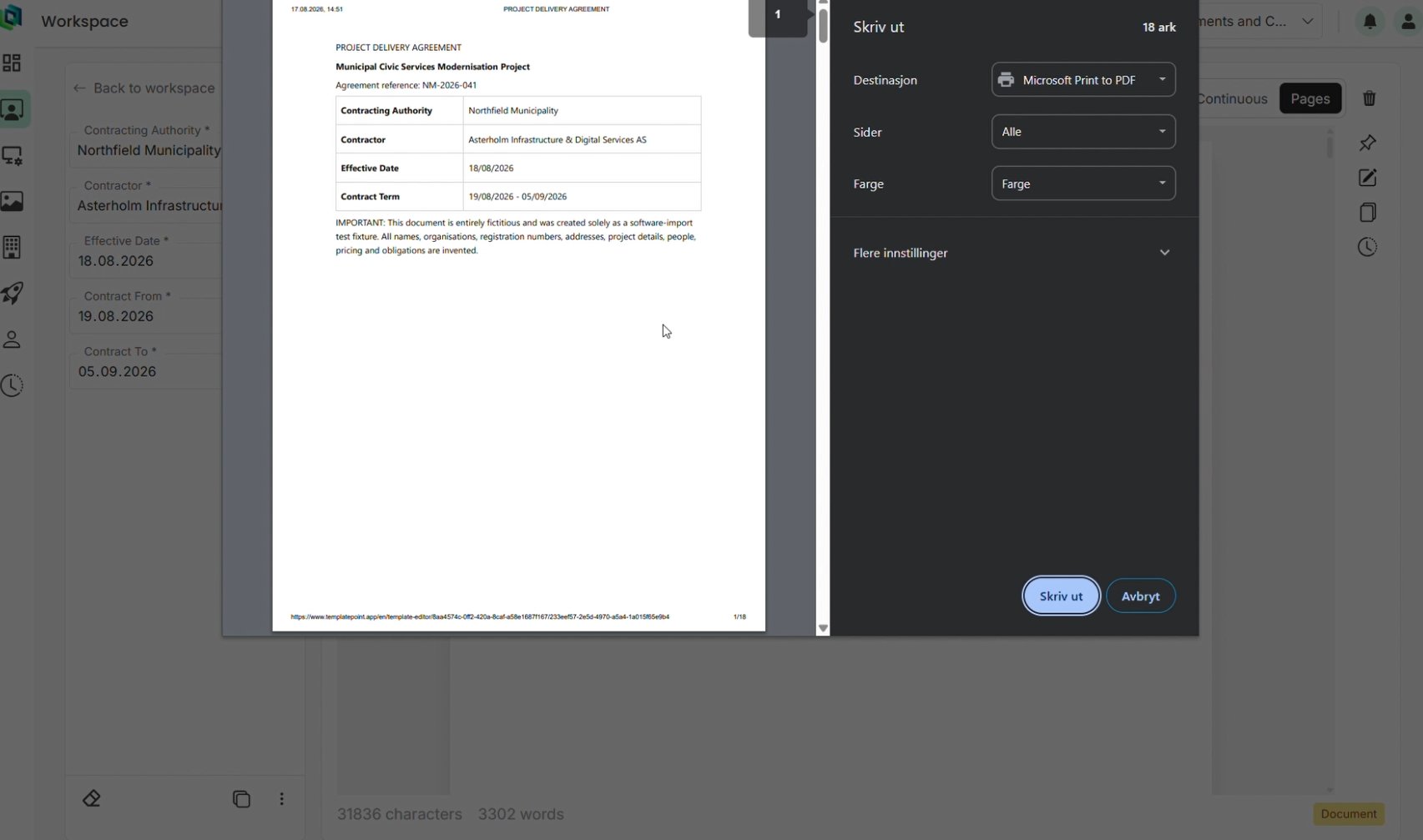
The values entered through TemplatePoint become part of the finished document.
No old customer name hiding in paragraph three of Appendix B.
No Agreement_NEW_FINAL_v2_fixed.docx.
And considerably less search-and-replace with your fingers crossed.
Your existing documents are usually the best place to start
Creating better templates does not mean your organisation has to start from a blank page.
You probably already have agreements, proposals, reports and other documents that work perfectly well.
The problem is often just how they are reused.
With TemplatePoint, you can start with the existing document, keep the structure and content that already works, and turn the parts that vary into fields.
The full workflow is simple:
Import → review → select → create fields → fill → export
Same document.
Just a little less dependent on someone remembering to replace absolutely everything.